Custom commands
Beyond the built-in commands, you can define your own on the Capabilities page. Each custom command becomes a button in Home Assistant. Add, or a double click on a row, opens the editor; its Test button runs the command right away, in the tray app. Shift and Ctrl pick several rows, and Remove takes them all (10.10.0+).
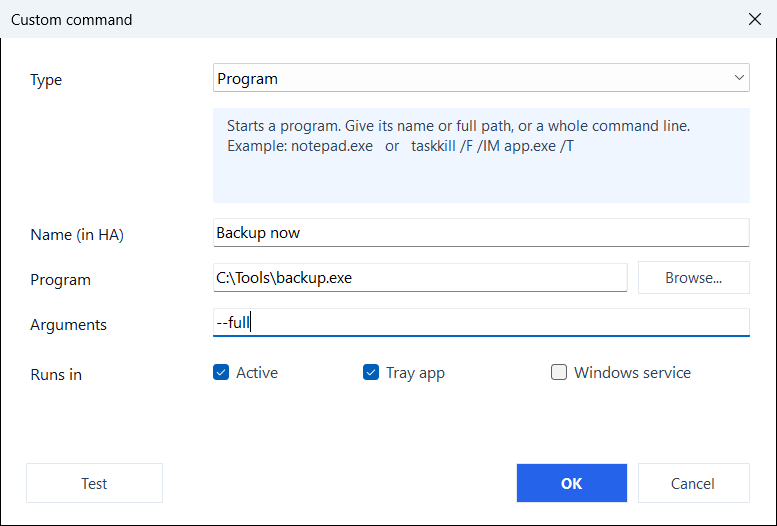
| Type | Command / script field |
Arguments field |
|---|---|---|
| Program | Executable path or name (e.g. notepad.exe, C:\Tools\backup.exe), or a full command line (e.g. taskkill /F /IM app.exe /T) |
Command-line arguments (optional; can also be put inline in the command field) |
| PowerShell | Inline command, or a .ps1 path |
Script arguments (used only for .ps1) |
| PowerShell 7 (pwsh) | Same as PowerShell, run with pwsh.exe |
Same as PowerShell |
| Key press | One or more key combinations, separated by spaces or commas (e.g. win+r, ctrl+shift+esc, ctrl+c ctrl+v) |
Not used |
| Open address | A link to open in the default browser (e.g. https://example.com), or an app link such as ms-settings:display |
Not used |
| Popup window (WebView) | A web address (http:// or https://) to show in a window of its own |
Window size, e.g. 1024x720 (optional) |
- Program commands launch via the shell, so GUI apps show in your session; PowerShell runs hidden with
-NoProfile -ExecutionPolicy Bypass. - Tick Tray, Svc, or both to choose where a command runs. Service-run commands execute in the
SYSTEMsession (no visible UI), and only after an administrator has approved them: Commands the service runs. - Key press, Open address and Popup window act on the desktop of the logged-in user, so they run in the tray app only; the Svc tick is cleared for them on save.
- Security: you own the command list. Home Assistant only sends the command's id to trigger it, never the program or script itself, so it cannot run arbitrary code on your PC. Requires the integration 10.6.0 or newer to show the buttons.
Key names
Letters and digits as they are, plus ctrl, shift, alt, win, enter, esc, tab, space, backspace, delete, insert, home, end, pageup, pagedown, up, down, left, right, f1-f24, num0-num9, printscreen, pause, capslock, numlock, scrolllock, menu, plus, minus, comma, period, play_pause, next_track, prev_track, media_stop, volume_up, volume_down, volume_mute, browser_back, browser_forward, browser_refresh, browser_home. Keys in a combination are joined with +. Windows does not let a normal program send keys to a window that runs as administrator, or to the lock screen.
The same names make a hotkey, the other way round: a combination pressed on the PC that reaches Home Assistant.
Examples
A camera when the doorbell rings, as a popup window:
Type: Popup window (WebView)
Command: https://homeassistant.local:8123/lovelace/doorbell?kiosk
Arguments: 800x600
The doorbell automation then presses the button:
A backup script from the service, at night, with nobody logged in: