Features
| What it does | Details | |
|---|---|---|
| Notifications | Home Assistant notifications as Windows notifications or in the app's own always-visible window, with pictures, buttons and text fields; what is pressed and typed comes back to Home Assistant as an event. | Notifications |
| Media player | The active Windows media session as a media_player: title, play / pause, skip, seek, volume, cover art, TTS and announcements that are heard on a muted PC. |
Media player |
| Sensors | Built-in system sensors (CPU, memory, drives, network, battery, session, GPU, drive health, camera and microphone in use, and more), each with its own polling profile. | Sensors |
| Custom sensors | Your own: a process, a service, a drive, an attribute of a built-in sensor, the output of a command or script, a LibreHardwareMonitor value. | Custom sensors |
| System commands | Lock, sleep, monitor off, volume, shutdown, restart as buttons and an action; hibernate and log off (off by default). | System commands |
| Custom commands | Your own buttons: programs, PowerShell scripts, key presses, links, popup windows. | Custom commands |
| Dashboard popup | A Home Assistant dashboard, or any web page, in a small window above the tray. | Dashboard popup |
| Display and audio | The screen as a light in Home Assistant, the default audio device as a select, the volume of a single app. | Display and audio |
| Hotkeys | A named key combination becomes an event in Home Assistant, to start automations from the keyboard. | Hotkeys |
| Windows service | The same program as a system service, for what should work with nobody logged in. | Windows service |
| Updates from Home Assistant | An update entity with a working Install button; silent when the service is installed; only installers signed by the publisher are run. | Updates |
| Who may use it | The settings, with the Home Assistant token and the commands, for every user of the PC or only for the ones you tick. | Who may use it on this PC |
| Danger Zone | Opt-in toolbox: MQTT cleanup, live monitor, debug log, backup and restore, factory reset, fast sensors, beta updates. | Danger Zone |
| Connection | MQTT, the Home Assistant WebSocket API, or both with automatic failover; a notification-only local HTTP API as a fallback. | Connection modes |
The pages of the app
A click on the tray icon opens the settings window; the tray menu also has the dashboard popup, the service's status and controls, the local API's address while that is on, and Exit. The pages, in the order of the sidebar:
- General: the device name Home Assistant shows, the local HTTP API (off by default) with its address, port and API key, the UI language and the language of the entity names in Home Assistant (English or Hungarian), start on login, the notification at startup, the settings and log folder, and the Danger Zone switch.
- MQTT and HA API: the two connections, each with a connection test. Connection modes
- Capabilities: which role, the tray app or the service, handles each feature and each system command; the notification style and the custom name; the dashboard popup; the custom commands; the hotkeys; the polling intervals. Windows service
- Media player: the media player entity, the cover art, the announcements. Media player
- Sensors: the built-in sensors with their roles and profiles, and the custom sensors. Sensors
- Service: install, start, stop and uninstall the Windows service. Windows service
- About: the installed version, the update check, the links. Updates
- Danger Zone, once switched on: the toolbox. Danger Zone
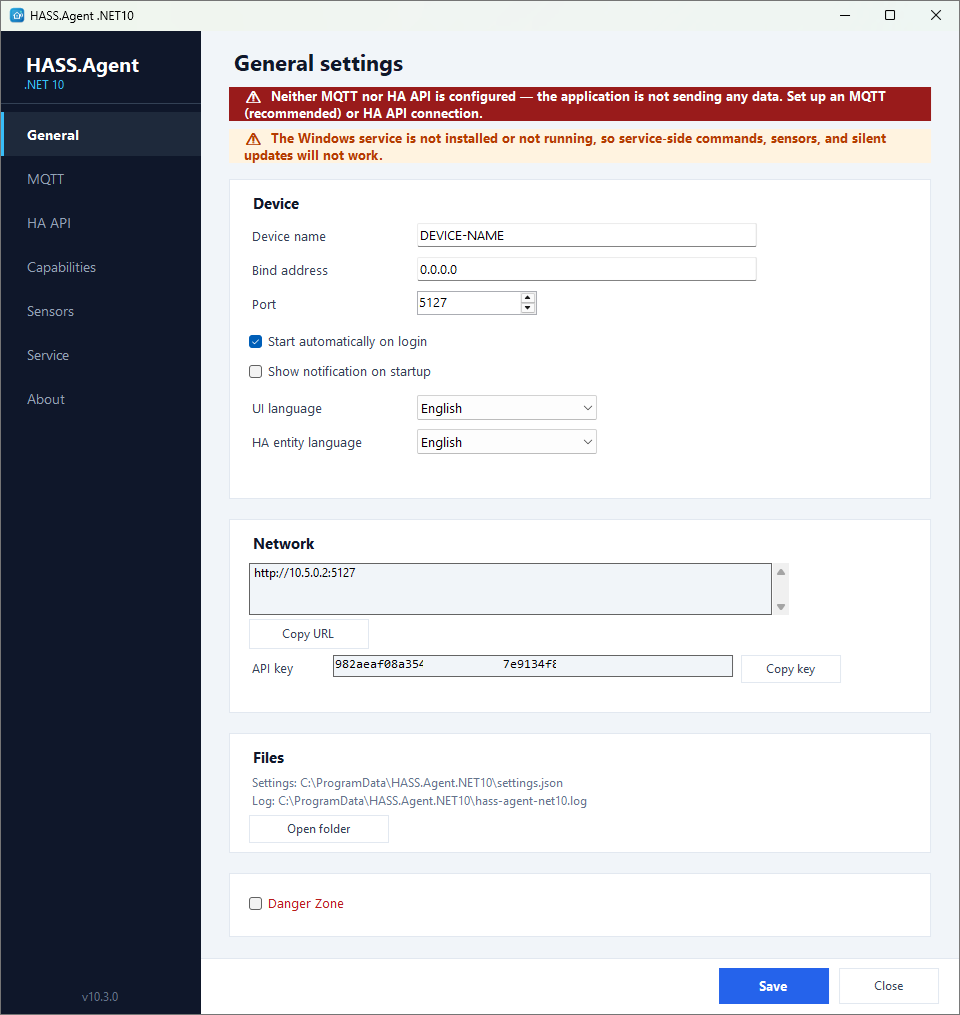
The settings are saved with Save at the bottom of the window; the app applies them without a restart, and the integration follows: an entity appears or disappears in Home Assistant as its feature or sensor is switched on or off.