Get started
Two pieces: the Home Assistant integration, from HACS, and the Windows app, from winget or the signed installer. Ten minutes, no editing of configuration files.
Requirements
- Windows 11, or Windows 10 version 2004 (build 19041) or newer, on x64. The .NET runtime ships with the app, there is nothing else to install.
- Home Assistant 2026.6 or newer with the companion integration, v1k70rk4/HASS.Agent.NET10-Integration, version 10.6.7 or newer. The app and the integration are released with matching version numbers; some sensors and entities need the integration of the same release, the changelog says which.
- An MQTT broker (recommended, Mosquitto for example) or the Home Assistant WebSocket API, which needs no broker and also works from away, through Nabu Casa. Connection modes compares them.
Windows versions older than Windows 10 2004 are intentionally blocked: the app targets net10.0-windows10.0.19041.0 and uses modern Windows APIs for notifications, media sessions, services, sensors and desktop state.
1. Install the integration
The integration is in the HACS default store, so no custom repository is needed: open HACS, search for HASS.Agent (or use the button), download it and restart Home Assistant.

If another HASS.Agent integration is installed, remove it first: both use the hass_agent domain, and Home Assistant can hold only one of them. Coming from HASS.Agent has the steps for a PC that ran the classic client.
2. Install the Windows app
With winget:
Or download the signed installer from the releases page and run it. The installer and winget lists its options; Security and privacy says how to check the signature. You can also build it from source.
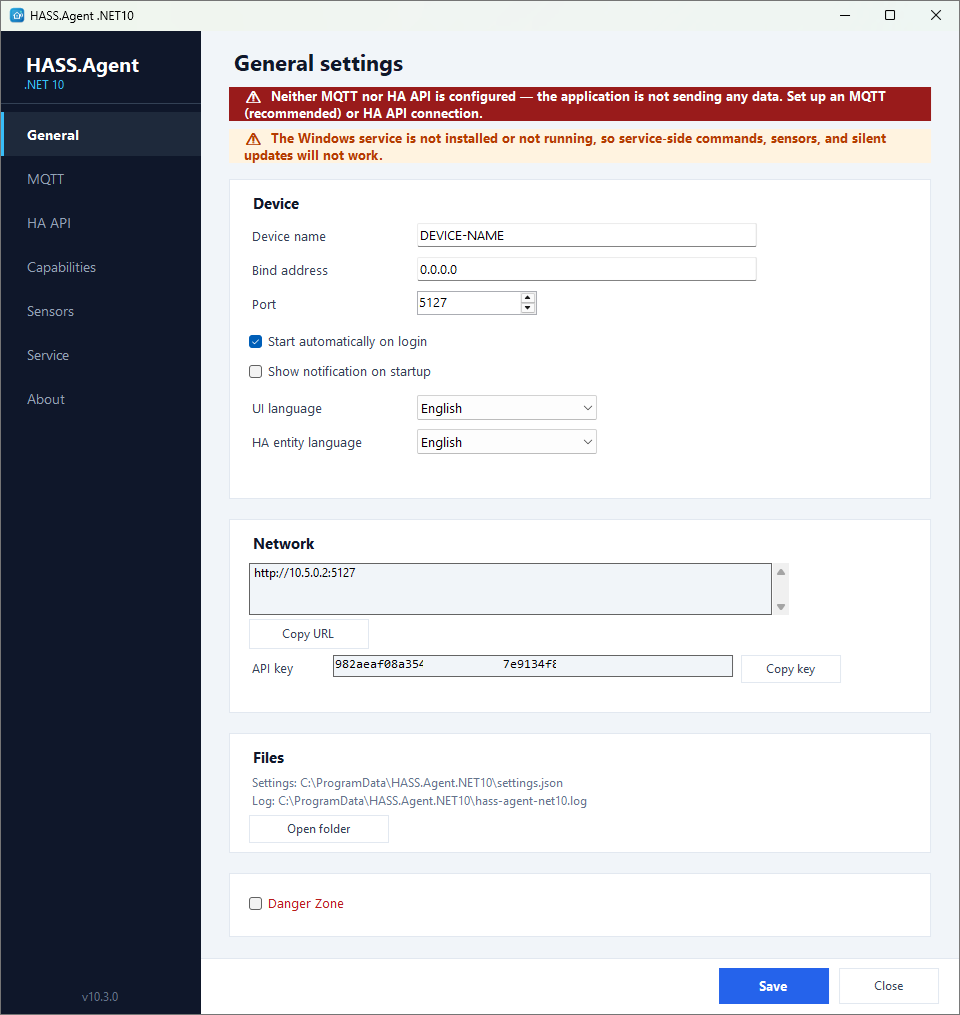
The installer starts the app when it is done. It lives in the tray: a click on its icon opens the settings.
3. Connect
On the MQTT page, enable MQTT and enter the broker's address and a login. Use a login of its own for HASS.Agent: whoever can log in to the broker can send this PC commands, so keep it to yourself (more). Test tells whether the broker answers.
The PC turns up on its own under Discovered at the top of Settings → Devices & services in Home Assistant. Like any discovery it waits for you: click Add on its card.
On the HA API page, enable the connection and enter the Home Assistant address and a long-lived access token. The app offers to create a Home Assistant user for this PC, one that is not an administrator, and switches to its token; a Home Assistant user for the PC explains it.
The first PC over the HA API is added by hand: in Home Assistant, Settings → Devices & services → Add integration → HASS.Agent → HA API (WebSocket), and keep that dialog open while the app connects. Every further PC on the HA API is then discovered like the MQTT ones.

Enable both. MQTT is used while the broker answers, and the app fails over to the HA API when it does not, which is what a laptop that leaves the house wants.
4. Choose what the PC offers
- On the Capabilities page, choose which features the tray app handles and which the service, and which system commands Home Assistant may send.
- On the Sensors page, switch on the built-in sensors you want and add custom sensors.
- On the Media player page, the media player entity and the announcements.
- Optionally install the Windows service from the Service page, for what should work when nobody is logged in: Windows service.
The integration creates the Home Assistant entities from what the app advertises, so whatever you switch on or off in the settings appears and disappears there on its own. The Features pages go through every page of the app.